Drone simulation, made approachable.
MAVLab is an Android-first drone systems simulation and digital-twin platform for learners who want to understand drones without first fighting ROS, Gazebo, ArduPilot/PX4 SITL, Docker, MAVProxy, Linux networking, and multi-window simulator setup.
1. Overview & Purpose
MAVLab exists to make drone simulation approachable. A learner who wants to understand drones is usually pushed straight into a hard professional stack — ROS/ROS 2, Gazebo/Webots/JSBSim, ArduPilot SITL / PX4 SITL, Docker, Python bridges, MAVProxy, UDP routing, and QGroundControl / Mission Planner configuration — long before they have understood the drone itself.
mavlab-android/.
Learning-order thesis
MAVLab does not compete with professional tools. It changes the learning order:
MAVLab first
  -> understand sensors, attitude, telemetry, flight modes, missions,
     failures, GCS workflows, and simulation state
  -> then graduate into ArduPilot SITL, PX4 SITL, Gazebo, ROS 2,
     Webots, JSBSim, hardware-in-the-loop, and real aircraft
What MAVLab abstracts away at the beginning
- Installing ROS/Gazebo/SITL stacks and building ArduPilot/PX4 locally.
- Running multiple terminals and bridges; debugging UDP endpoints before understanding MAVLink.
- Needing a physical Pixhawk, frame, batteries, RC transmitter, GPS module, telemetry radio, or a safe test field for the first learning loop.
What MAVLab should still teach
- Arm/disarm and flight modes; roll, pitch, yaw, altitude, velocity, GPS, and heading.
- Sensor quality and failures; MAVLink telemetry and command flow.
- QGroundControl connection and mission workflows; manual vs GCS mission control authority.
- Autonomous mission upload/execution; wind, battery, payload, motor, GPS, compass, barometer, and link-loss failures.
- 3D state visualization through the SIM tab; logs, reports, replay, and debrief.
2. Features (v1.5)
Fixed-rate quadcopter physics model with realistic PID attitude/altitude control.
Live telemetry panels and rolling real-time graphs for altitude, roll, pitch, and yaw.
Interactive dual joysticks or phone accelerometer tilt control.
Live 3D rendering of position, attitude, and propeller speeds using a bundled GLB model.
Autonomous mission upload, track plotting, active-waypoint navigation, and Guided offsets.
Interoperable with QGroundControl: heartbeats, position/attitude streams, parameters, mission sync.
GPS loss/drift, compass loss, barometer offset, wind/gusts, motor failure, battery drain, payload mass, and link loss.
Session-based CSV telemetry and JSONL event timelines.
Human-readable
report.md debriefs: max altitude, battery use, failure timeline, safety notes.Share/export flight files via standard Android Sharesheet intents.
Educational walkthrough of features and digital-twin concepts; replayable from Ops.
Failure Labs scenarios
- GPS Loss, GPS Drift, Compass Loss, and Barometer offset failures.
- Wind speed, direction, and gust simulation.
- Individual motor failure.
- Unsafe battery drain and heavy payload masses.
- Signal / link loss scenarios.
3. Build & Quick Start
Project facts
com.ascend.mavlab
1.5.0 (code 15)
minSdk 26 (Android 8.0) · compile/target 35
Kotlin · JDK 17 · Jetpack Compose · SceneView
MAVlab.apk · < 50 MB
Offline-first · Android 8.0+
Build, test & assemble the debug package
cd mavlab-android
GRADLE_USER_HOME="$PWD/.gradle" ./gradlew lintDebug testDebugUnitTest assembleDebug
Install to a connected device
adb install -r app/build/outputs/apk/debug/app-debug.apkCI verifies lint, unit tests, and the debug build. Keep the debug APK under 50 MB.
4. QGroundControl Integration
Connecting QGC
- Split-screen (on-device): open MAVLab and QGC side-by-side. QGC discovers the vehicle on
127.0.0.1:14550. - Local Wi-Fi (cross-device): put the phone and computer on the same Wi-Fi. MAVLab's UDP broadcast auto-links the vehicle to desktop QGC.
- Ensure the GCS System ID is
255(default) and MAVLab is1to prevent system conflicts.
Test environments
Environment A — split-screen Android
- Enable developer options and split-screen/multi-window for all apps.
- Open MAVLab in the top half, QGroundControl in the bottom half.
- QGC listens on localhost port
14550and discovers the MAVLab broadcast.
Environment B — cross-device local Wi-Fi
- Connect the Android device and a desktop running QGC to the same Wi-Fi router/hotspot.
- Ensure no firewall blocks UDP port
14550. - Launch both; the UDP broadcast auto-registers the drone on desktop QGC.
Acceptance checklist
| Item | Action | Verification |
|---|---|---|
| Discovery | Open both apps | QGC discovers MAVLab within 5 s; audio "Armed"/"Disarmed"; heartbeats turn green. |
| Arm/Disarm | Click Arm/Disarm in QGC | State updates immediately; SIM propellers start/stop. |
| Command ACK | Takeoff / Land in QGC | QGC receives ACK; drone moves vertically. |
| Mission upload | Create waypoints, tap Upload | All items accepted; MISSION RESTORED printed; waypoints shown in Mission tab. |
| AUTO flight | Start AUTO mission | Drone navigates waypoints; MAVLab transmits current WP indices; QGC active line moves. |
| Link reconnect | Wi-Fi off 10 s, then on | QGC reports link loss, reconnects, resumes telemetry. |
| Stability | Run 10 minutes | Telemetry stable; memory constant; no ANRs or crashes. |
Mission upload protocol flow
QGC MISSION_COUNT          -> MAVLab validates count, clears upload state
MAVLab MISSION_REQUEST_INT -> QGC MISSION_ITEM_INT (per sequence)
... repeat until all items received ...
MAVLab loads mission into MissionEngine / PhysicsSimulationEngine
MAVLab MISSION_ACK(ACCEPTED) -> Mission screen shows uploaded mission
Supported mission messages: MISSION_COUNT, MISSION_ITEM_INT, legacy
MISSION_ITEM, MISSION_REQUEST_LIST, MISSION_REQUEST_INT,
legacy MISSION_REQUEST, MISSION_CLEAR_ALL, MISSION_SET_CURRENT,
MISSION_ACK, MISSION_CURRENT, and MISSION_ITEM_REACHED.
Outbound telemetry also includes HEARTBEAT, ATTITUDE,
GLOBAL_POSITION_INT, GPS_RAW_INT, VFR_HUD,
SYS_STATUS, BATTERY_STATUS, COMMAND_ACK, and
PARAM_VALUE. Inbound command handling covers SET_MODE,
PARAM_REQUEST_LIST, PARAM_SET, COMMAND_LONG
(arm/disarm, takeoff, land), and SET_MESSAGE_INTERVAL.
5. MAVLink & System IDs
MAVLab mimics ArduPilot by default and must not auto-renumber its vehicle system ID during a live link. A MAVLink system ID is part of vehicle identity; silently changing it while a GCS is connected leaves QGC with stale vehicle state (heartbeat visible, but mission upload behaves as if nothing is connected).
Recommended defaults
| Role | System ID | Component ID | Notes |
|---|---|---|---|
| MAVLab vehicle (autopilot) | 1 | 1 | Stable for the whole session; not derived from Android ID. |
| QGroundControl (GCS) | 255 | 190 | QGC default GCS system ID. |
| Second MAVLab simulator | 2, 3… | — | For multiple simulated vehicles on one network. |
| Second GCS / companion | 254 / 190 | — | Companion must not pretend to be the vehicle. |
Port mapping
| Endpoint | Port |
|---|---|
| MAVLab local bind (receive from GCS) | 14551 (same-device) / 14556 legacy |
| QGC UDP listen (telemetry target) | 14550 |
On the first GCS heartbeat MAVLab records the sender IP/port and switches from broadcast to targeted
unicast to reduce congestion. 0.0.0.0 is a bind address only — never a send target.
Guardrails & invariants
- Self-heartbeat guard: inbound packets whose sender System ID equals the local vehicle System ID are ignored (prevents parsing looped-back broadcasts as GCS commands).
- Heartbeat rate:
HEARTBEAT(#0) broadcast at 1 Hz. - Connection warmup:
gcsConnected = trueonly after ≥ 3 s of continuous GCS heartbeats. - Connection timeout: > 15 s without GCS heartbeats marks the link disconnected.
- Failsafe reversion: losing the GCS link during AUTO reverts authority from
GCS_MISSIONto safety defaults (hold/RTL) to prevent flyaways.
Conflict handling — diagnose, do not self-change
If a colliding heartbeat arrives, MAVLab keeps its vehicle ID stable and surfaces a diagnostic warning instead of renumbering:
MAVLink identity conflict
MAVLab vehicle SYSID is 1.
QGC heartbeat is also using SYSID 1.
Set QGC MAVLink System ID to 255 and reconnect.
Do not change MAVLab vehicle SYSID unless running multiple simulated vehicles.
Inbound commands/mission messages are target-filtered: act only when
target_system == vehicleSystemId or target_system == 0 (broadcast where
semantics allow). PARAM downloads advertise a stable identity
(SYSID_THISMAV=1, MAV_SYSID=1, SYSID_MYGCS=255,
MAV_GCS_SYSID=255). Mission upload is blocked with a clear reason
(MAV_MISSION_DENIED) while an identity conflict exists.
Recommended QGC setup for the user
1. Open QGroundControl settings -> MAVLink.
2. Set QGC MAVLink System ID to 255.
3. Keep MAVLab Vehicle System ID at 1.
4. Same-phone: QGC UDP 14550, MAVLab bind 14551.
5. Restart/reconnect the UDP link after changing the System ID.
6. Architecture
Runtime
SimulationServicestarts the shared simulation runtime (foreground service boundary).AppRuntimeexposes state, failures, missions, MAVLink status, and control commands to Compose screens.PhysicsSimulationEngineruns the fixed-rate physics loop and owns autopilot, failures, mission progress, and battery state.
Single source of truth — state flow
Controller input or QGC command
  -> PhysicsSimulationEngine / MissionEngine / Autopilot / FailureInjector
  -> DroneState  (Kotlin StateFlow)
  -> Cockpit + Controller + Mission + SIM + Ops + FlightRecorder
State changes write directly to StateFlow structures inside the engine;
AppRuntime exposes them as read-only streams; Compose screens observe them as read-only
state, ensuring atomic, unidirectional data flow. The SIM is never animated directly from UI
controls.
Control authority model
A priority-based single-writer authority model arbitrates between local input and remote GCS commands.
| Authority | Meaning | Cockpit UI |
|---|---|---|
IDLE | No active authority; drone disarmed or waiting. | Control: Idle |
CONTROLLER | Built-in phone/manual controls drive the drone. | Control: Controller |
GCS_DIRECT | QGC commands mode/arm/takeoff/land, no mission active. | Control: GCS Direct |
GCS_MISSION | Uploaded QGC mission / AUTO drives the drone. | Control: GCS Mission |
Manual override: local inputs (disarm, manual land, guided offsets, joysticks)
instantly preempt an active GCS_MISSION and shift back to CONTROLLER.
Autopilot state writes must verify the active authority before writing to the state flow.
Core modules
MAVLink endpoint, socket config, message builder/packets, mission upload session.
Phone sensor abstraction.
Default settings structures.
Engine +
DroneState shape (attitude, motors, authority, MAVLink labels).6-DOF physics step.
Flight controller +
MissionEngine.FlightRecorder / FlightSession / FlightEvent.Compose surfaces and the foreground service.
Phase order
Phase 0 skeleton & guardrails → Phase 1 QGC/MAVLink proof → Phase 2 physics → Phase 3 controller & telemetry → Phase 4 3D visualization → Phase 5 failures & missions → Phase 6 polish & release.
7. Product Surfaces
MAVLab is organized into five primary tabs. Every tab answers one clean question. (Systems
is deferred from MVP navigation; its failure/health capability is surfaced as a lightweight subset
inside Controller.)
| Tab | Question it answers | Primary mode |
|---|---|---|
| Cockpit | What is the drone doing now, and who is controlling it? | Observe / command essentials |
| Controller | How do I manually control or perturb the drone from the phone? | Manual/local control |
| Mission | What mission did QGC/demo load, and how is it progressing? | GCS/autonomous operation |
| SIM | How is the drone reacting visually to the current simulation state? | Visual digital twin |
| Ops | Is MAVLink/QGC/app infrastructure healthy? | Diagnostics / configuration |
Cockpit
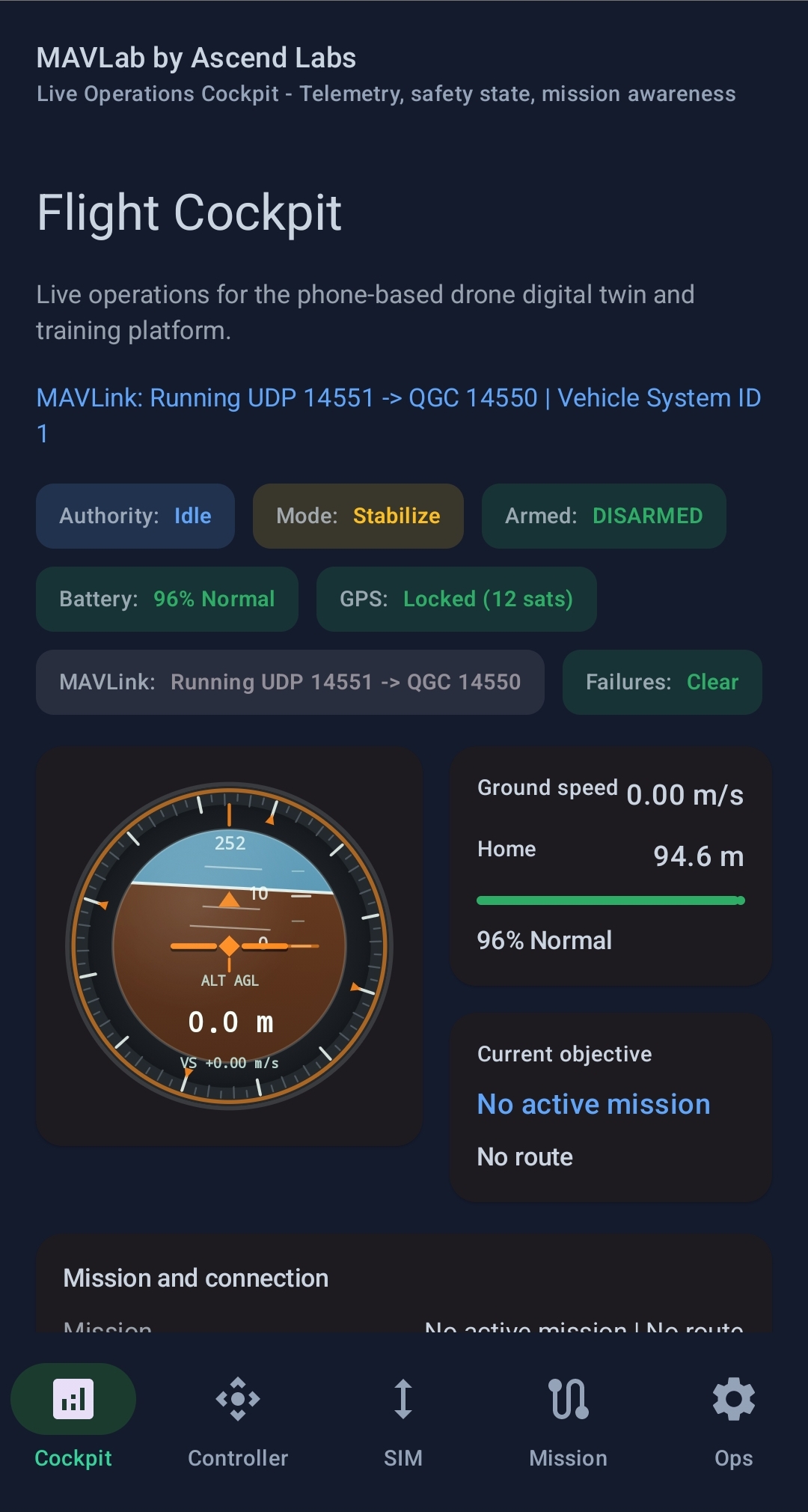
Live flight instrument and authority/status surface: control authority, flight mode, armed state, altitude AGL, ground/vertical speed, heading, battery percent/voltage, GPS fix & satellites, roll/pitch/yaw, throttle, attitude/altitude charts, MAVLink/GCS indicator, mission summary, last inbound message and last ACK, plus essential arm/takeoff/land buttons. It stays glanceable and does not own tuning, failure sliders, or 3D internals.
Controller
Local manual-control surface with an input-source selector (Phone sensors vs Custom input), calibration, tilt visualizer, throttle/roll/pitch/yaw controls, and an Advanced test inputs section (motor failure, GPS loss, wind preset, reset). Every Controller input routes through the simulation engine — never animating the model directly. It also hosts the Drone Sound Lab (see §9).
Mission
Inspect, start, clear, and monitor uploaded or demo missions: source, waypoint list, active waypoint, progress count, AUTO start, clear, load demo, re-upload replacement, and mission-protocol status (upload in progress/accepted/rejected, last sequence). GCS missions drive the same simulation state as manual flight.
SIM
The visual digital twin. Loads drone.glb, maps east/north/altitude to position and
pitch/yaw/roll to rotation, animates propellers from motor state, and overlays a HUD (authority, mode,
arm state, altitude, speed, battery, GPS, motor RPM bars, active waypoint, failure warnings). Default
is a chase/inspection view: the drone stays readable near center while the
world/path/camera communicate movement. Bench and world/map views are future modes.
Altitude instrument (SIM HUD spec)
A bottom-center circular aviation-style indicator drawn in Compose Canvas: dark bezel
and tick ring, blue-sky/brown-ground artificial horizon with white horizon line, a fixed orange drone
reference marker, an altitude scale, and readouts for ALT AGL, altitude (1 dp), and
vertical speed (signed, 2 dp). It binds to DroneState only — never to 3D model
transforms — and reacts to roll/pitch with a low-altitude warning band.
Ops
Technical operations & diagnostics: MAVLink UDP status, bind port, QGC destination, system/component IDs, last inbound message, last ACK, identity health, flight-log history/sharing, QGC troubleshooting, replay onboarding, and the release QA checklist.
3D model node contract
The app is model-agnostic as long as the GLB follows a stable node-name and pivot contract
(e.g. Prop_FL/FR/RL/RR, Motor_FL/FR/RL/RR, optional
PropBlur_*, Battery, GPSModule, PayloadMount,
CameraGimbal). Missing optional nodes degrade gracefully and are reported in diagnostics
rather than crashing. Performance targets: GLB < 5 MB where possible, < ~50k triangles.
8. Flight Logging & Reports
Arming creates a new session; disarming closes it, computes flight-envelope stats, and writes the report. Sessions are stored in app-private storage (no storage permission needed, works offline):
filesDir/mavlab/flights/{session_id}/
  manifest.json   # session start/end, duration, app/schema version, max alt/speed, battery used, event counts
  telemetry.csv   # ~5 Hz time-series telemetry
  events.jsonl    # one JSON object per line: timeline events
  mission.json    # snapshot of the uploaded/demo mission
  report.md       # human-readable markdown flight summary + safety review
Telemetry CSV (v1.5 schema highlights)
Includes session_id, control authority, armed state, flight mode, lat/lon, north/east
position, altitude AGL, ground/vertical speed, headingDegrees, roll/pitch/yaw, throttle,
battery percent/voltage, gpsFixType, satellite count, motor RPM (when available),
activeWaypoint, and failureFlags.
Events (JSONL)
Sparse, human-readable: recording start/stop, arm/disarm, takeoff/land, mode changes, authority changes, mission upload lifecycle, waypoint reached, mission completion, failure injection/restoration, GCS connection, and battery/failsafe warnings.
Markdown report
Each session auto-generates report.md summarizing dates/durations and control
authorities, mission parameters and waypoint success ratios, calculated flight envelopes (e.g. max
altitude), chronological event timelines, and safety observations (e.g. "GPS was lost during
flight — practice altitude-hold recovery..."). Reviewable in-app via the report viewer dialog.
Sharing
Android FileProvider packages session files and exposes them through standard
Sharesheet intents — share the complete flight folder (CSV, manifest, events, mission, report) to
email, drive, or chat.
9. Audio / Sound System
MAVLab sound should evolve from a demo feature into a digital-twin training signal: make the drone feel alive, make RPM/throttle understandable by ear, make failures/payload audible, make the sound physically explainable, and eventually connect sound, telemetry, and AI debrief.
Architecture (kept replaceable)
DroneState + FailureState
  -> DroneSoundModel
  -> DroneSoundController
  -> Android audio backend
-> Controller / SIM / Ops surfacesController/QGC input → PhysicsSimulationEngine → DroneState.motors → DroneSoundModel → DroneSoundController.
AppRuntime owns lifecycle, not a Compose screen.Current target: V2 — Controller-tunable per-motor adaptive sound
Four SoundPool motor streams, each following its motor's RPM; per-motor mix and
roughness sliders; sound test mode (audio-only while disarmed); low/critical battery cues. Controls
live in Controller → Drone Sound Lab: sound enabled, master volume, per-motor mix, roughness,
alerts, test mode, test RPM, reset. Optional assets: drone_motor_loop.wav,
drone_motor_rough_loop.wav, drone_warning_beep.wav,
drone_motor_sputter.wav.
Version roadmap
| Version | Main technique | Main value | Priority |
|---|---|---|---|
| V1 | One SoundPool loop | Basic life/feedback | Skip/reference |
| V2 | Four SoundPool motor streams | Per-motor adaptive training sound | Build now |
| V3 | Hybrid SoundPool + AudioTrack | Procedural RPM/BPF realism | Next after V2 |
| V4 | Spatial/environment model | Distance/flyby realism | Later |
| V5 | Profiles + drills | Operator training product | Later |
| V6 | Oboe + AI debrief | Production digital-twin audio | Long-term |
V3 acoustic model (blade-pass frequency)
BPF = blade_count * RPM / 60
2-blade prop @ 6000 RPM -> BPF = 200 Hz
harmonics: 200, 400, 600, 800 Hz ...
V3 keeps V2 loops but adds procedural layers (blade-pass harmonics, filtered prop-wash noise,
motor/ESC whine, maneuver roughness, descent turbulence), with AudioTrack streaming for
the procedural layer alongside SoundPool cues. Later versions add spatial audio (distance
attenuation, panning, Doppler), drone acoustic profiles and training drills, and finally a native Oboe
engine feeding AI debrief features.
10. Setup Guide
MAVLab's core learning loop runs from one Android-first app. You do not need ROS, Gazebo, ArduPilot SITL, PX4 SITL, Docker, Python bridges, cloud servers, or Linux networking knowledge to start.
Install
- Install MAVLab on an Android 8.0+ phone.
- Install QGroundControl if you want ground-station integration.
- Open MAVLab and complete onboarding.
- Use the guided surfaces: Cockpit, Controller, Mission, SIM, and Ops.
QGroundControl
For same-device use, run MAVLab and QGC in split-screen — MAVLab broadcasts MAVLink telemetry over
UDP and QGC should discover it automatically. For desktop QGC, put phone and desktop on the same Wi-Fi;
MAVLab broadcasts to common LAN destinations and UDP port 14550.
Build from source
cd mavlab-android
GRADLE_USER_HOME="$PWD/.gradle" ./gradlew lintDebug testDebugUnitTest assembleDebug
adb install -r app/build/outputs/apk/debug/app-debug.apk
Troubleshooting
- If QGC does not connect, restart QGC and MAVLab, then confirm both are on the same network.
- If the phone controller is unavailable, use the manual fallback sliders in the Controller tab.
- If the 3D model does not render smoothly, keep using Cockpit/Mission — the simulator keeps running.
11. Teacher Guide
MAVLab is designed for classroom drone-systems lessons without physical aircraft and without making students begin with the hardest simulation stack. Learners understand drone behaviour first, then later graduate into ROS, Gazebo, ArduPilot/PX4 SITL, Webots, JSBSim, hardware-in-the-loop, and real aircraft.
Teaching philosophy
- Show the concept in MAVLab.
- Let students operate it from a phone.
- Connect the concept to QGroundControl/MAVLink.
- Only then explain how it appears in ArduPilot SITL, PX4 SITL, ROS, Gazebo, or real aircraft.
Recommended lesson order
1. Your First Flight · 2. Understanding MAVLink · 3. Phone as Controller · 4. Flight Modes Explained · 5. PID Control · 6. Sensors · 7. Failsafes.
Classroom format
- Students run MAVLab on their phones; QGC in split-screen or on an instructor desktop.
- Open each session with the problem MAVLab solves: the concepts can be learned first in one friendly app.
- Use Failure Lab only after students understand normal flight.
Assessment ideas
- Explain the difference between Stabilize, Alt Hold, Guided, Loiter, Auto, and RTL.
- Identify which telemetry messages QGC uses for attitude, position, GPS, and battery.
- Demonstrate GPS loss and explain why Auto/Loiter degrade.
- Load a demo mission and describe waypoint progression.
- Compare behavior with and without wind.
12. Test Matrix & QA
v1.5 functional test matrix
| ID | Scenario | Expected result | Status |
|---|---|---|---|
| ONB-001 | First launch | Onboarding explains Cockpit, Controller, SIM, Mission, Labs, and Ops. | Passed |
| ONB-003 | Onboarding replay (Ops) | Overlay re-opens, navigable/dismissible. | Passed |
| DASH-001 | Idle telemetry | Disconnected/disarmed; 0.0 m AGL; battery ~85%; flat charts. | Passed |
| DASH-002 | Active telemetry | Panels update at 5 Hz; charts plot real-time curves. | Passed |
| CTRL-001 | Phone sensor toggle | Tilting shifts roll/pitch indicators; yaw trim slider works. | Passed |
| CTRL-002 | Manual fallback | Joystick sliders control roll/pitch/yaw/throttle. | Passed |
| SIM-001 | Drone animation | GLB model pitches/rolls and spins props in sync with telemetry. | Passed |
| SIM-002 | Overlay panel | Altitude, vertical speed, battery match simulation values. | Passed |
| MIS-001 | Demo mission load | 4-waypoint path loads; pins and trajectory shown. | Passed |
| MIS-002 | QGC discovery | QGC detects MAVLab at 127.0.0.1:14550 or local IP; green heartbeats. | Passed |
| MIS-003 | GCS mission upload | Mission acknowledged; items sync to Mission tab. | Passed |
| MIS-004 | AUTO execution | Drone flies waypoints; current/reached updates sync to QGC. | Passed |
| FAIL-002 | In-flight GPS Loss | GPS indicator red; Ops badge "1 scenario"; chip shows ● ACTIVE. | Passed |
| FAIL-003 | Failure reset | All failures clear; badges hide; GPS healthy. | Passed |
| LOG-001 | Log generation | Session folder under mavlab/flights/ with all files. | Passed |
| LOG-002 | View report | Dialog shows markdown report (dates, duration, max alt, battery, timeline, safety). | Passed |
| LOG-003 | Share session | Sharesheet contains all 5 flight files. | Passed |
Device coverage
Android 8 / 11 / 13 / 15 (devices or emulators), a low-end phone for sensor-fallback testing, and a Pixel-class phone for the performance baseline.
Protocol & lifecycle tests
- Same-phone split-screen QGC; desktop QGC on the same Wi-Fi; Wi-Fi off/on; explicit QGC IP; subnet broadcast.
- App background/restore; screen rotation; screen off/on; QGC restart while MAVLab runs; MAVLab restart while QGC runs; two MAVLab devices on one network.
- 3D performance: Twin/SIM does not stutter on a low-cost phone; props don't cause excessive recomposition; SceneView samples latest state rather than collecting 100 Hz UI updates.
Release QA
Clean install + onboarding, demo mission + AUTO, inject GPS loss + verify Alt-Hold failsafe, confirm QGC telemetry, run one hour with no crash/ANR, and confirm the debug APK is under 50 MB.
13. Demo Script (7–10 min)
1 · Setup & onboarding (1 min)
Launch MAVLab. Open with the problem statement (beginners get pushed into ROS/Gazebo/SITL/Docker/ MAVProxy/networking; MAVLab is the friendly first layer). Walk the tabs — Cockpit, Controller, SIM, Mission, Ops — then tap Get Started.
2 · Pre-flight & local manual control (2 min)
Controller → Arm Vehicle → throttle up or Takeoff (alt hold at 10 m). Switch to SIM to watch takeoff/hover. Back in Controller, enable Phone Sensor Control and tilt the phone; show the SIM mimicking tilt; toggle sensors off to return to joysticks.
3 · QGC connection & AUTO mission (3 min)
Connect QGC (split-screen or desktop on the same Wi-Fi). Plan a short 3-waypoint mission in QGC and Upload; verify it appears in MAVLab's Mission tab. Trigger AUTO; watch the SIM fly, noting active-waypoint rings and the Mission index updating.
4 · In-flight failures & recovery (2 min)
Ops → Failure scenario catalog → GPS Loss (Jamming). Point out the ● ACTIVE badge; in Cockpit the GPS lock drops from 3D Fix to No Fix (red); observe QGC's GPS warning; execute a safe Land to recover.
5 · Post-flight review & export (2 min)
Disarm. In Ops, open the completed session → View Report; point out the timeline (armed → GPS failure → land) and the safety warning. Tap Share to show the Sharesheet ready to export the CSV and markdown files.
14. Release Notes & Checklist
What's new in v1.5
Flight logging & reporting
- Rich telemetry CSV with
session_id,gpsFixType,headingDegrees,activeWaypoint,failureFlags. - Auto-generated
report.md: dates/durations, authorities, mission & waypoint ratios, flight envelopes, event timelines, and safety observations. - In-app report viewer dialog and Sharesheet export of the full flight folder.
Failure Lab upgrades
- Collapsible scenario catalog; real-time active-failure count badges; per-chip ● ACTIVE tags.
Onboarding & diagnostics UI
- Replayable first-launch onboarding; color-coded MAVLink/QGC link-state indicators.
Upgrade
./gradlew installDebug
# then open the app, follow onboarding, and use the Ops tab
# for flight logs, sharing, and the failure catalog
v1.5 phase acceptance (snapshot)
| Phase | Status |
|---|---|
| 0 · Baseline audit & release definition | Done |
| 1 · Navigation, product surface, copy polish | Done |
| 2 · Onboarding upgrade | Done |
| 3 · Cockpit UI polish | Done |
| 4 · SIM / 3D visualization upgrade | Done |
| 5 · Mission & QGC workflow polish | Pending real same-phone & desktop-Wi-Fi acceptance |
| 6 · Failure-lab explanation polish | Done |
| 7 · Flight logging, export & review | In progress |
| 8 · QA, demo, docs & packaging | In progress |
15. Contributing
MAVLab is an Android-first drone education simulator. Keep changes focused, testable, and useful for students learning flight systems.
Local setup
- Install Android Studio or the Android SDK command-line tools.
- Install Android SDK 35 and Java 17.
- Open
mavlab-android/as the Android project. - Build & test:
cd mavlab-android
GRADLE_USER_HOME="$PWD/.gradle" ./gradlew lintDebug testDebugUnitTest assembleDebug
Guidelines
- Keep simulator behavior deterministic where possible.
- Add JVM tests for physics, controller mapping, mission, and failure logic.
- Avoid network-dependent runtime features unless there is an offline fallback.
- Keep the APK under 50 MB.
- Do not commit local SDK paths, build outputs, or device-specific files.
Existing test anchors include MavlinkMessageBuilderTest,
MissionUploadSessionTest, MissionEngineTest,
ControlAuthorityTest, DroneModelControllerTest,
MissionSnapshotCodecTest, MissionUploadStatusTest, and
FlightRecorderTest. Licensed under MIT.
16. Asset Inventory
The repository ships three tracked binary assets. All are referenced here as local paths only.
| Path | Type | Role |
|---|---|---|
drone.glb | GLB 3D model | Runtime digital-twin model loaded by the SIM screen (node-name/pivot contract in §7). |
assets/Mav logo.png | PNG image | MAVLab / Ascend Labs brand mark (shown in this document's header). |
assets/Screenshot_20260620_184419.jpg | JPEG image | App interface screenshot (shown in the overview hero). |

drone.glb